
LogbookWrappedYour Aviation Journey,
Visualized.
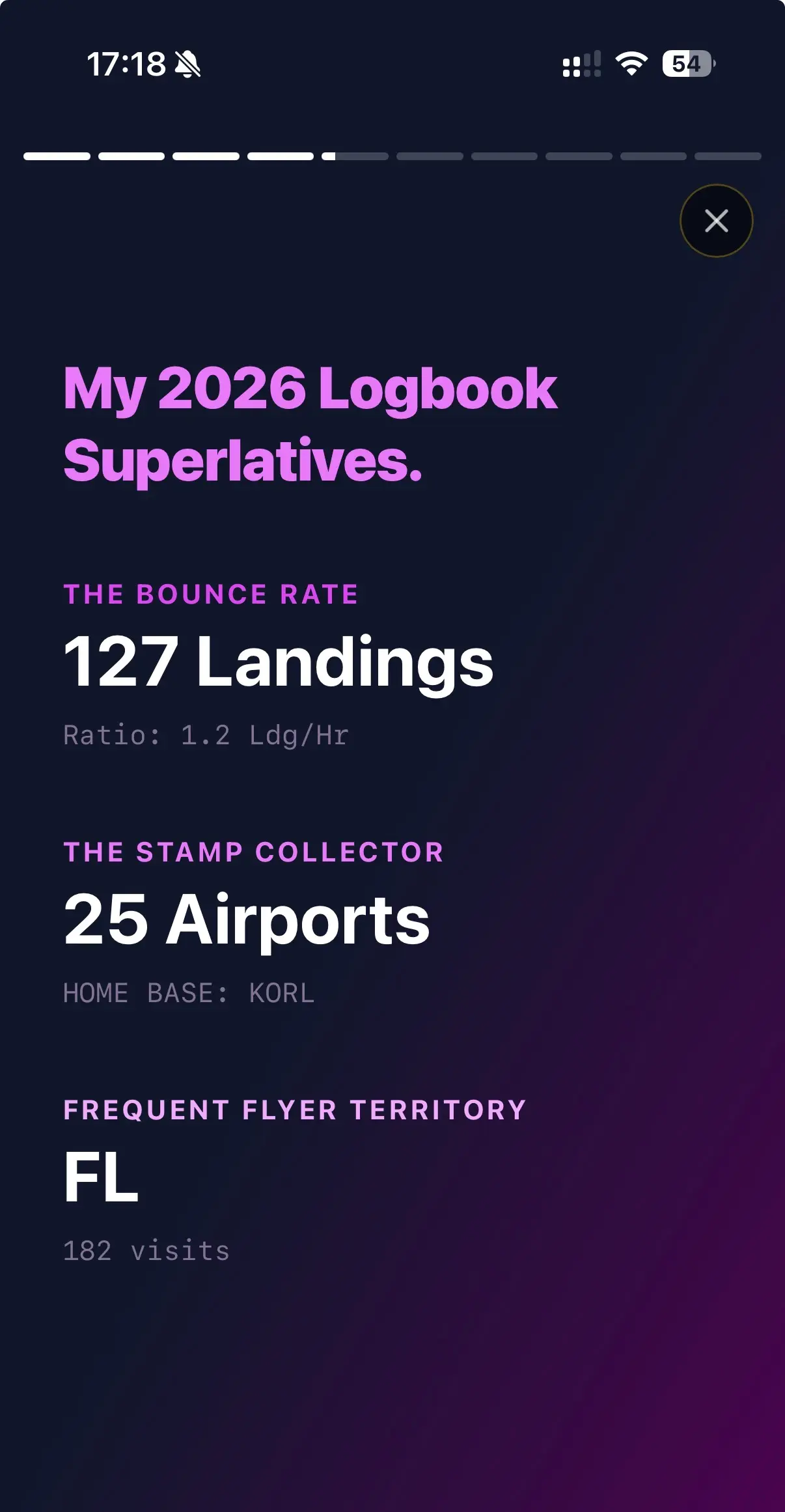
The "Spotify Wrapped for Pilots."
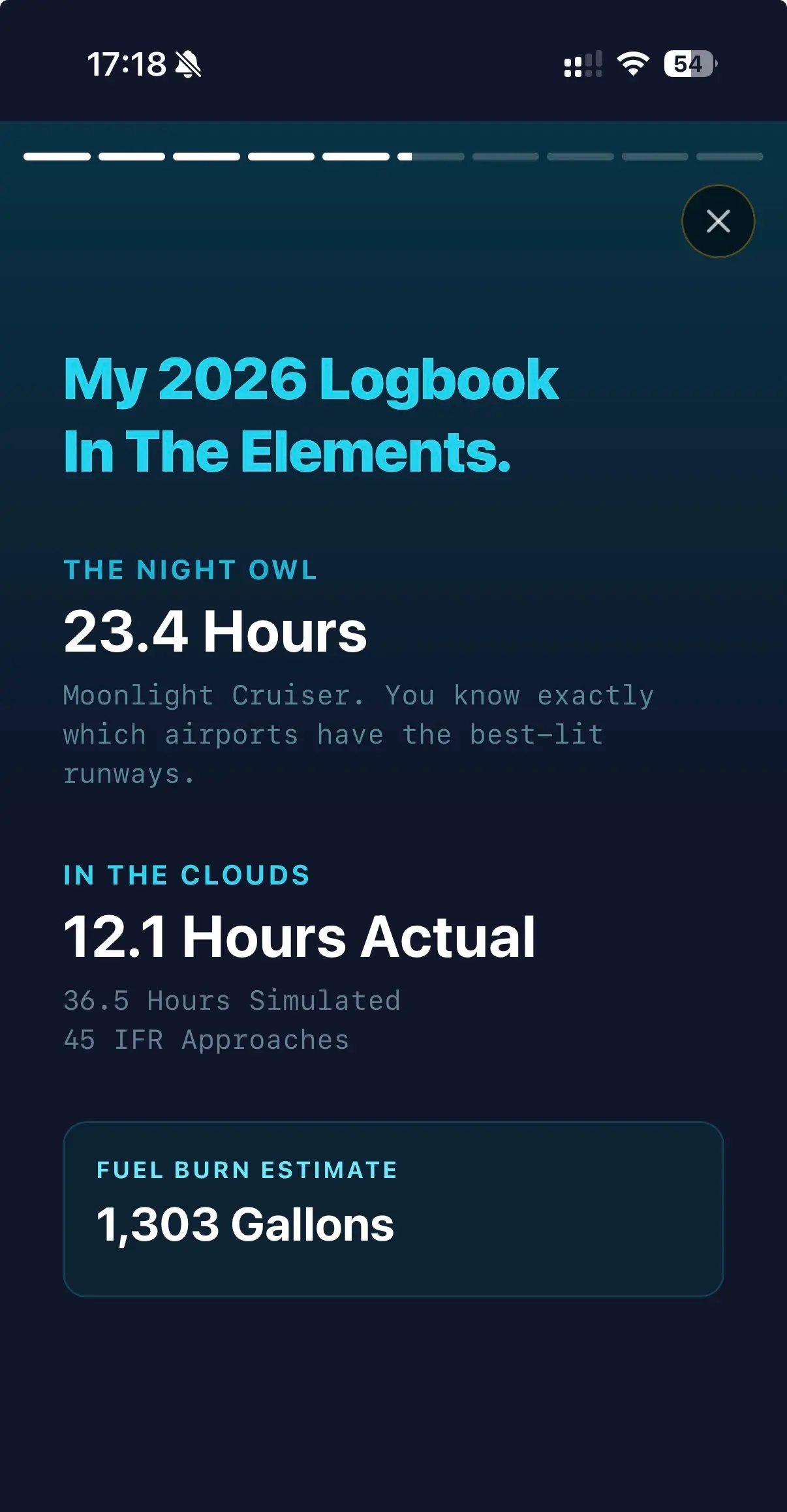
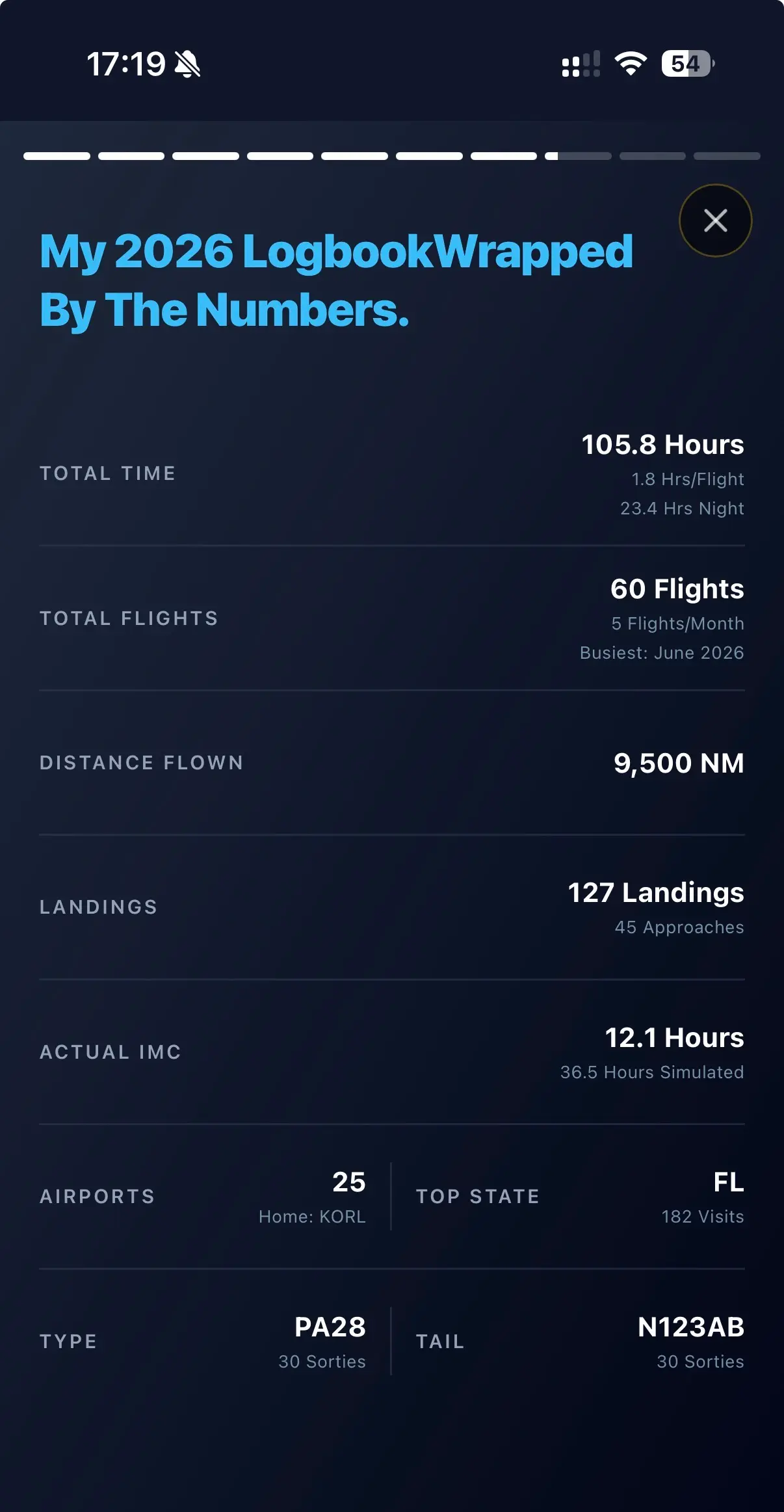
Turn your logbook data into a stunning visual story.
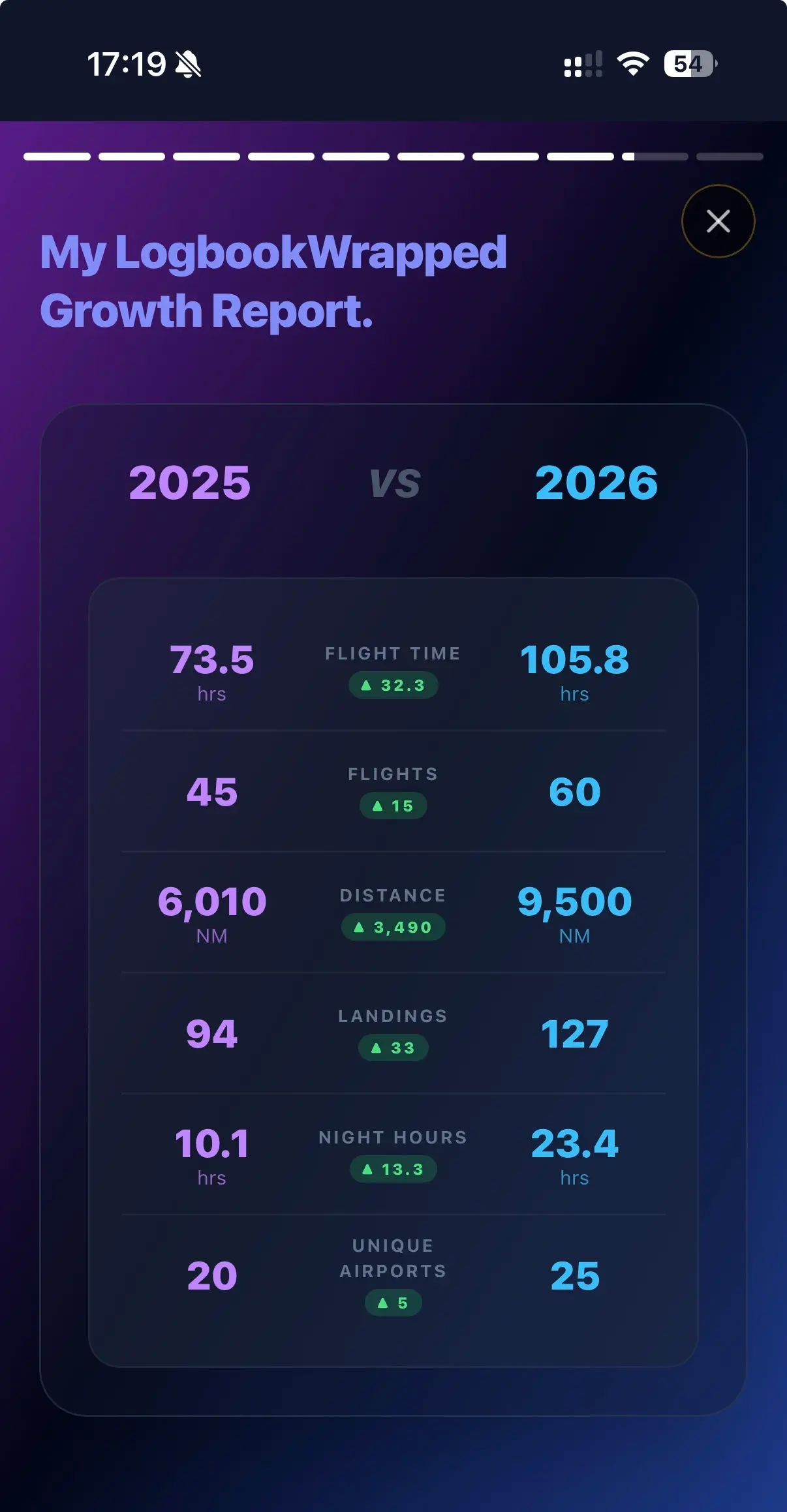
Generate your Annual Review, Lifetime Review, track a Milestone, or see your Year-over-Year Growth.
Core Features
100% Private Logs
Client-side parsing. Your raw logbook never leaves your device.
Instant Insights
Auto-detects and parses EFB logbook formats automatically.
Social Ready
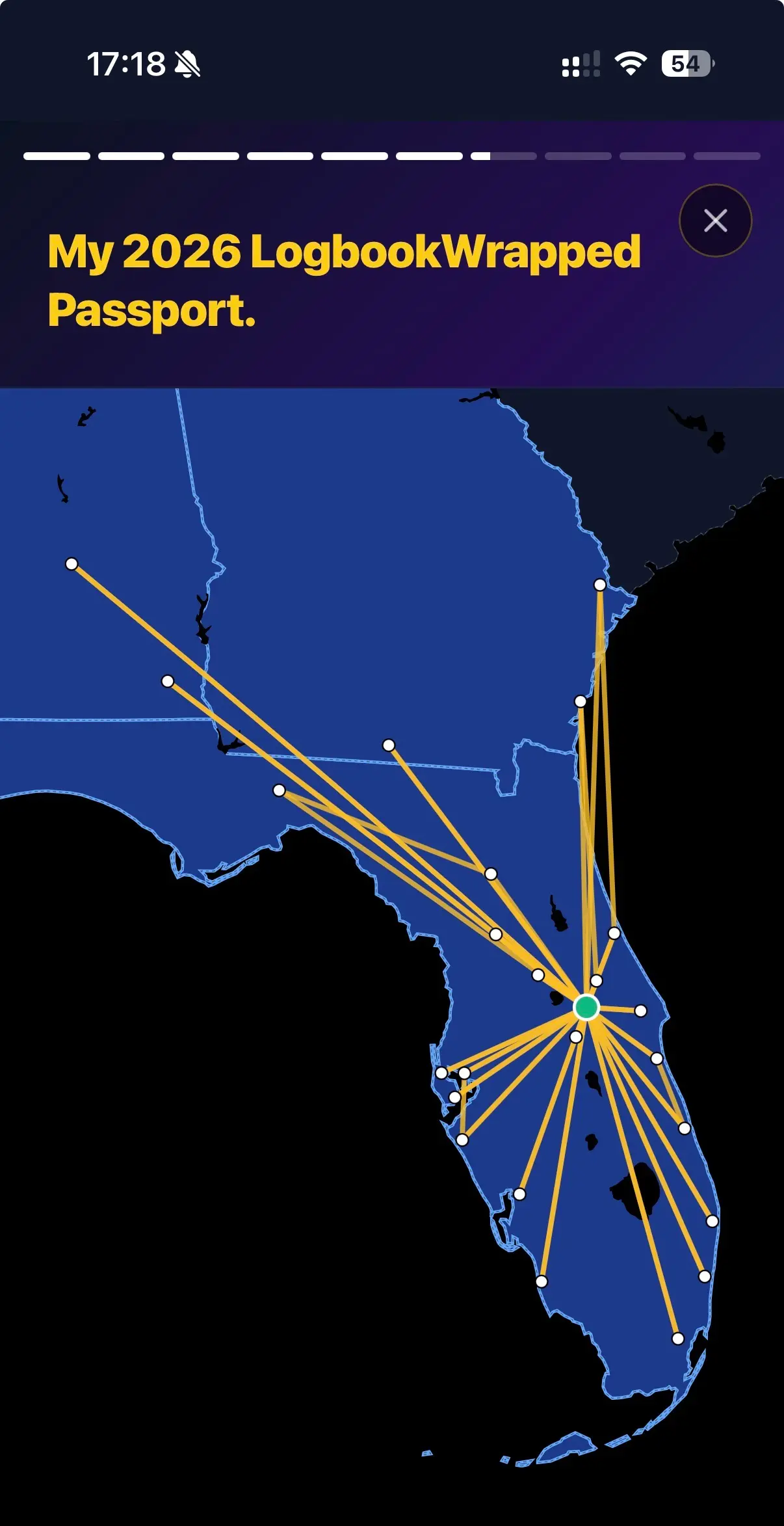
Export 9:16 stories and 4:5 posts for social media, or share a live link directly.
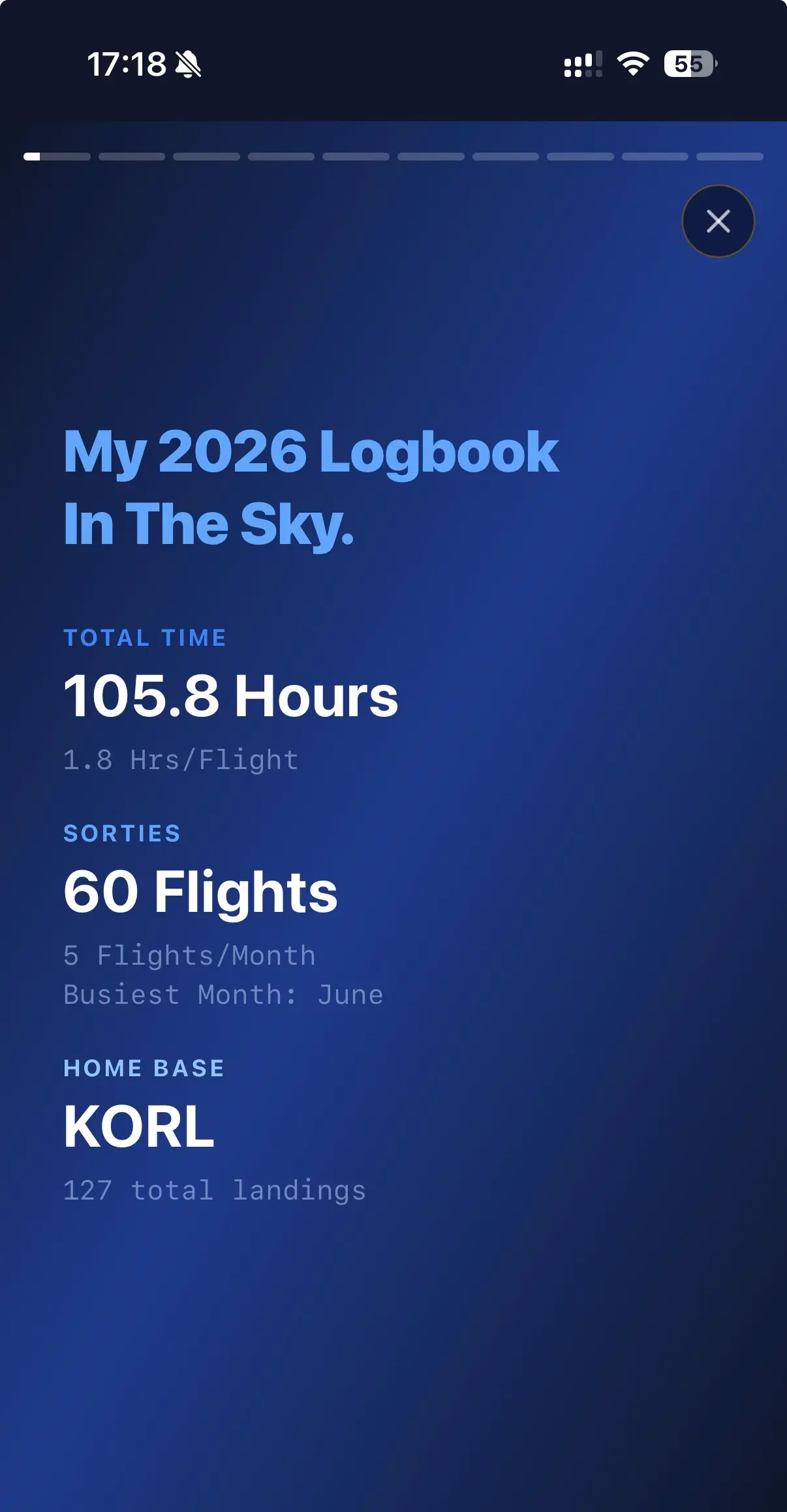
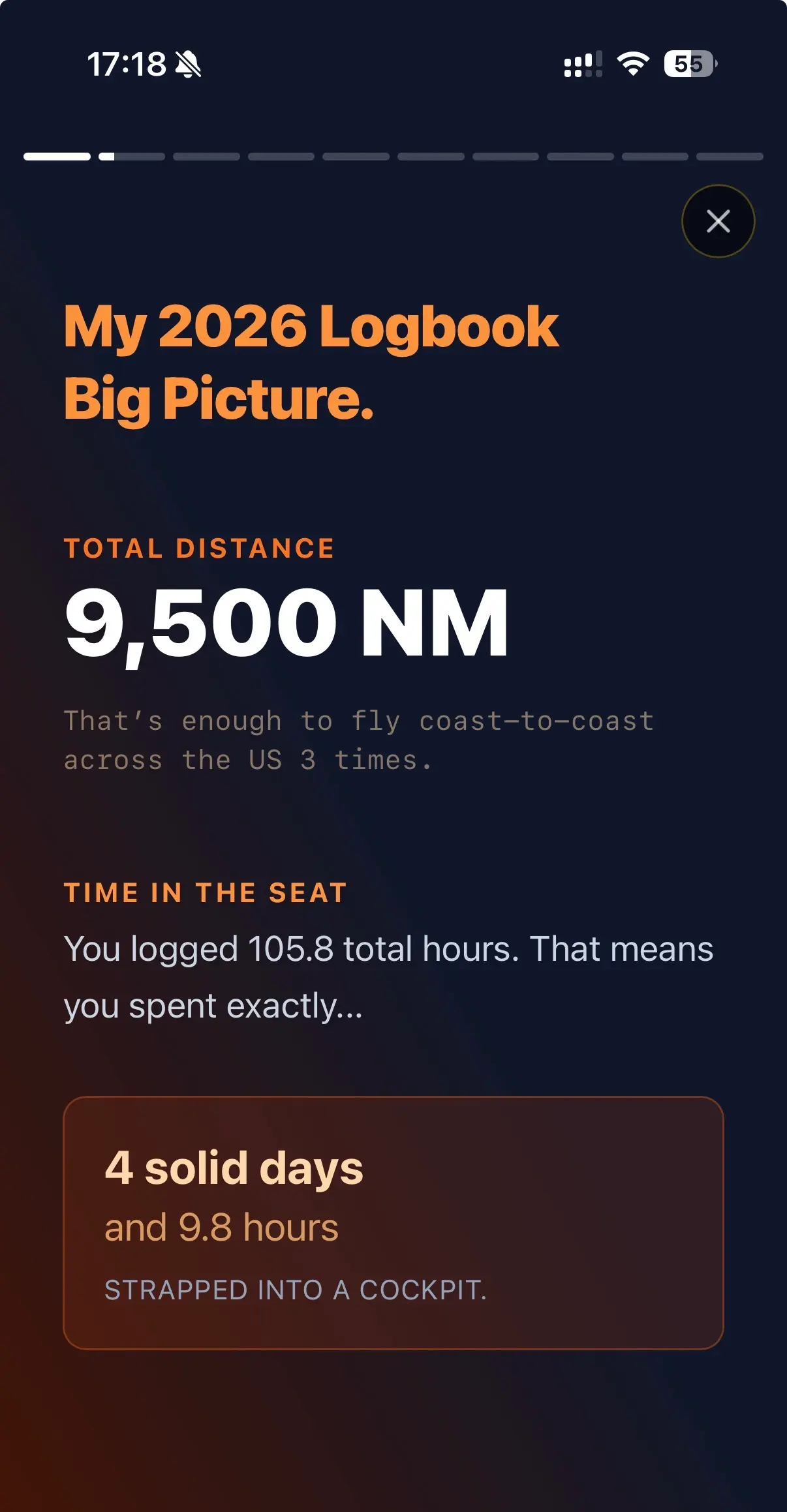
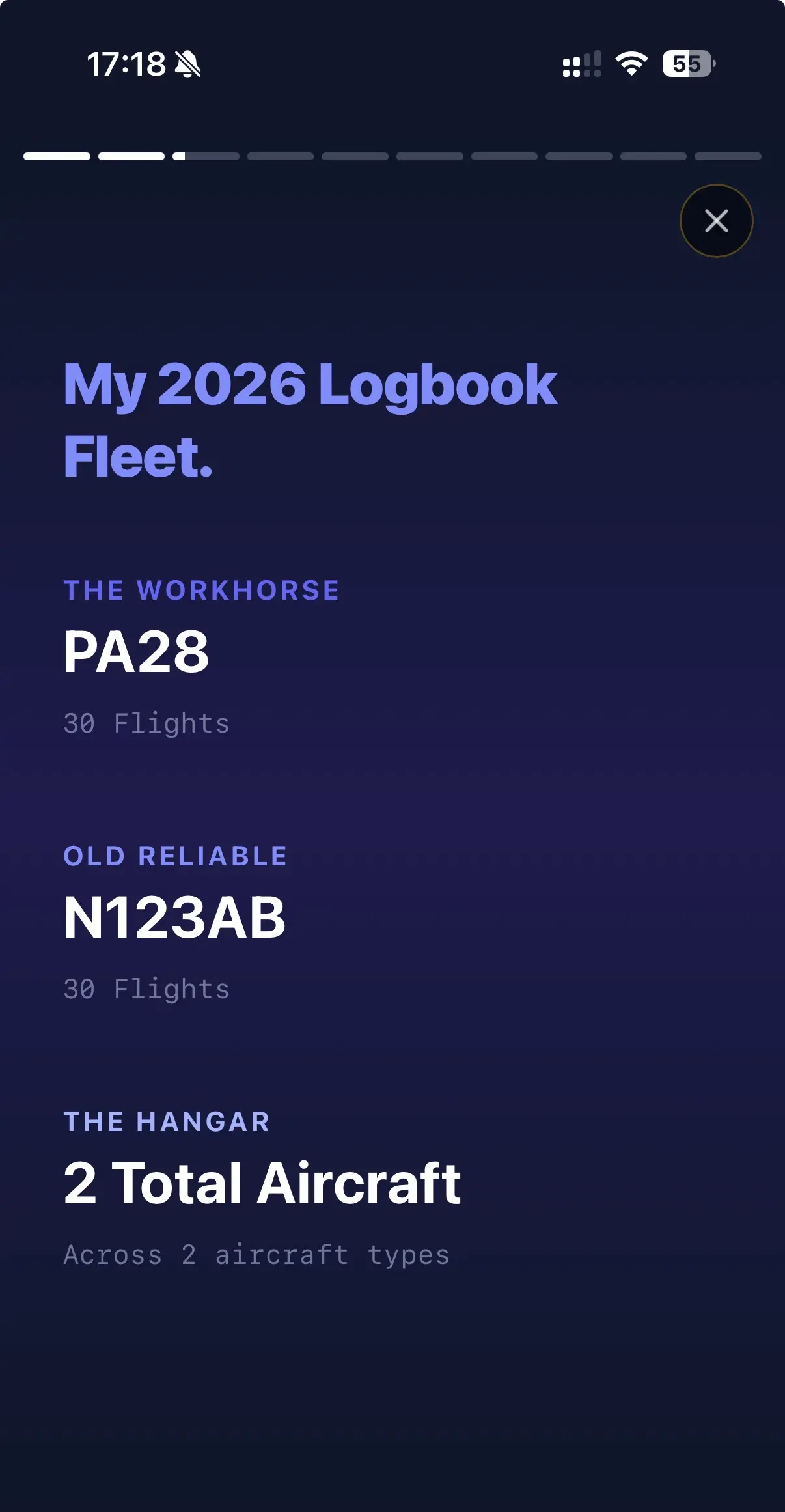
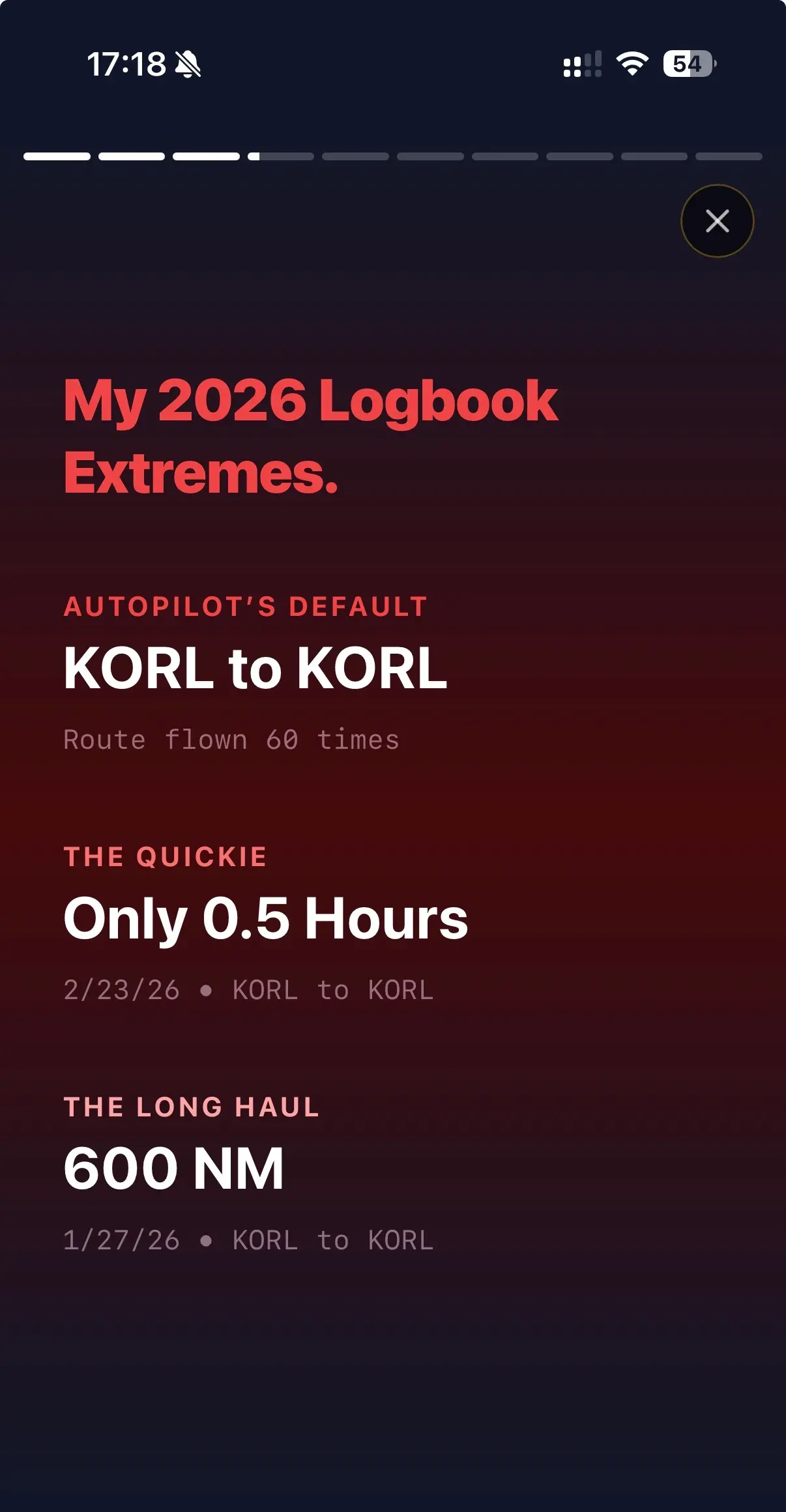
Upload Your Logbook
Generate your Annual Review, Lifetime Review, Track a Milestone, or see your Year-over-Year Growth.
Your raw logs are processed 100% locally.
Demo Hangar
Not ready to upload your logbook yet? Explore our demos to see exactly how LogbookWrapped works before uploading and making your own.
Supported Electronic Flight Bags
LogbookWrapped’s parser automatically cleans and visualizes CSV exports from ForeFlight, Garmin Pilot, MyFlightbook, LogTen Pro, and custom spreadsheet formats.
How We Parse Your Flight Logs
Every pilot logs their flight time differently. Some are meticulous with their remarks; others leave half the columns blank. Here is how our custom engine automatically cleans, patches, and interprets your raw flight data before crunching the numbers to generate your aviation year in review.
Share Your Aviation Adventures
Whether you are celebrating a new license or looking back at a busy flying season, LogbookWrapped helps you visualize your journey. View your routes on our interactive maps, discover your personal aviation extremes, and uncover unique superlatives. When you are ready, instantly export high-resolution 4:5 posts and 9:16 vertical stories directly to Instagram, TikTok, Facebook, or your favorite aviation forums.
Privacy FirstLogbook parsing happens completely in your web browser. Your raw flight logs are never sent to a server and remain strictly on your device. You can optionally choose to share anonymous, high-level totals to help build our community averages.